 TabEvery
Download free
 TabEvery
- Drag to group
- New windows join on their own
- Switch from the keyboard
- Two tabs side by side
- One size for the whole group
- Pick and group
Drag to group
Drag a window's title bar over another window and pause. A blue outline appears. Let go, and they become tabs.
Help →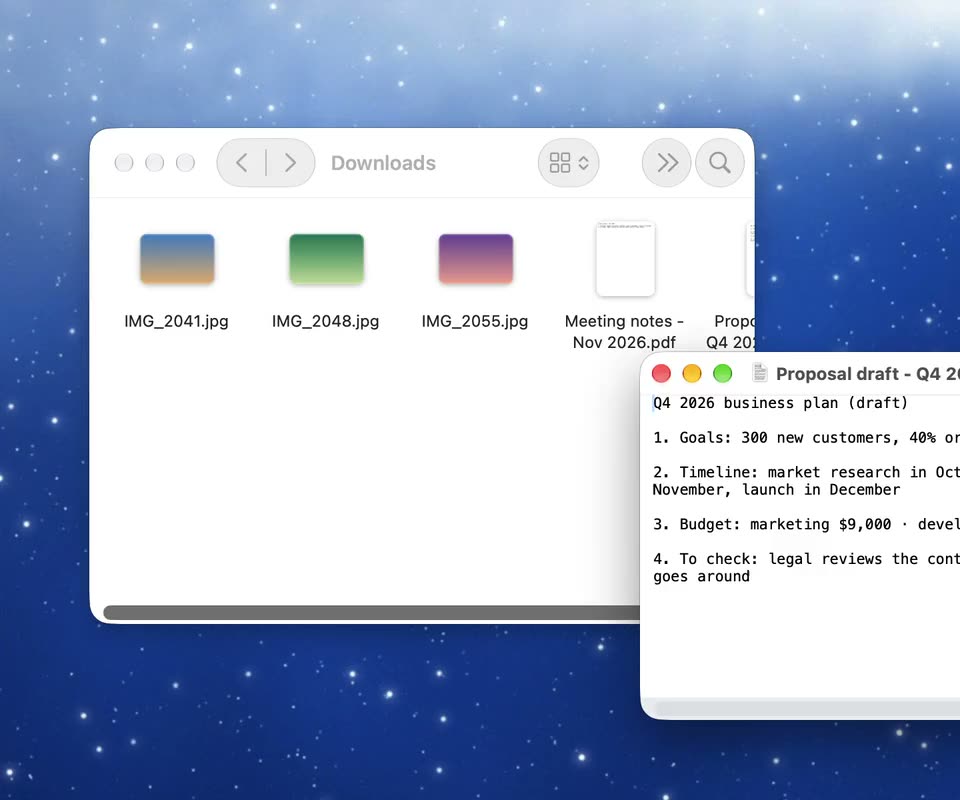
New windows join on their own
Pick apps in Settings, and their new windows join your most recent group, in the order you opened them.
Help →
Switch from the keyboard
By default, Option with an arrow key, or Option with 1 to 9. TabEvery takes the keys only when the front window is in a group.
Help →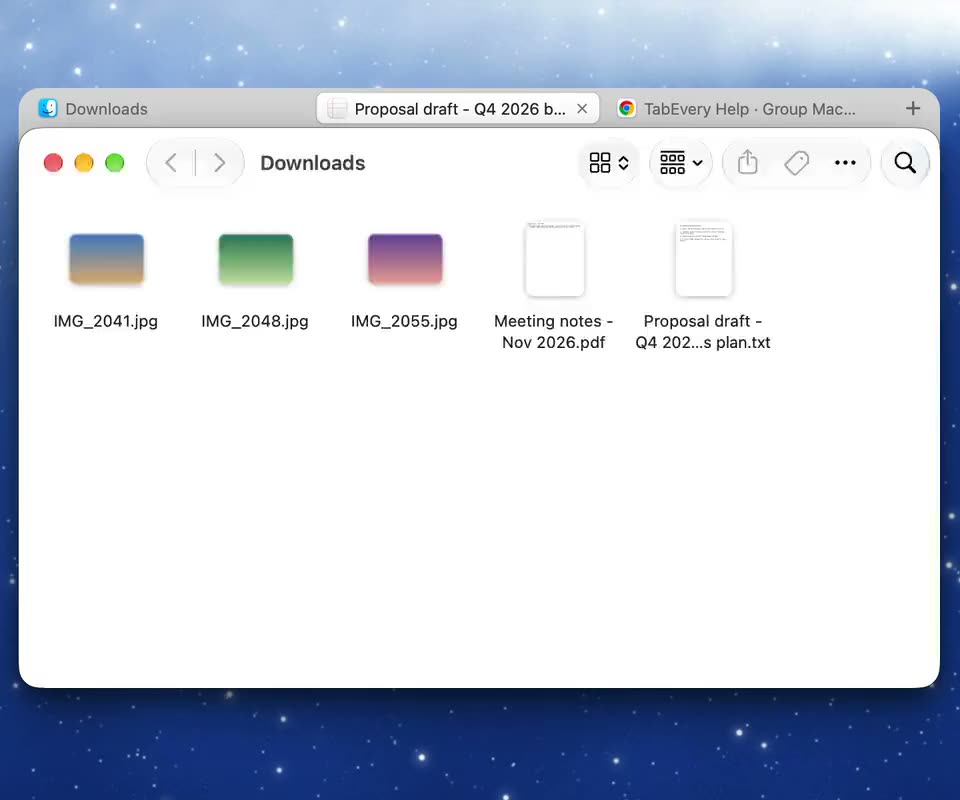
Two tabs side by side
Press Option and \ to put the tab you see and the next tab side by side. You can also stack them top and bottom.
Help →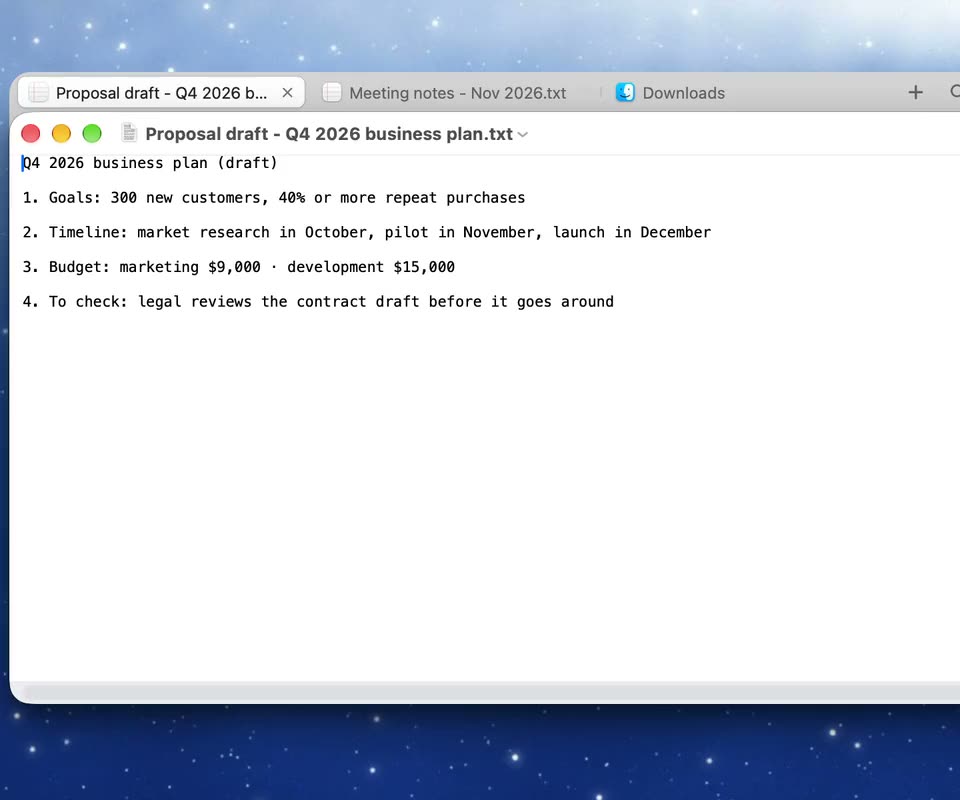
One size for the whole group
The window and the tab bar stay the same size as you switch tabs. If you want each tab at its own size, turn that on in Settings.
Help →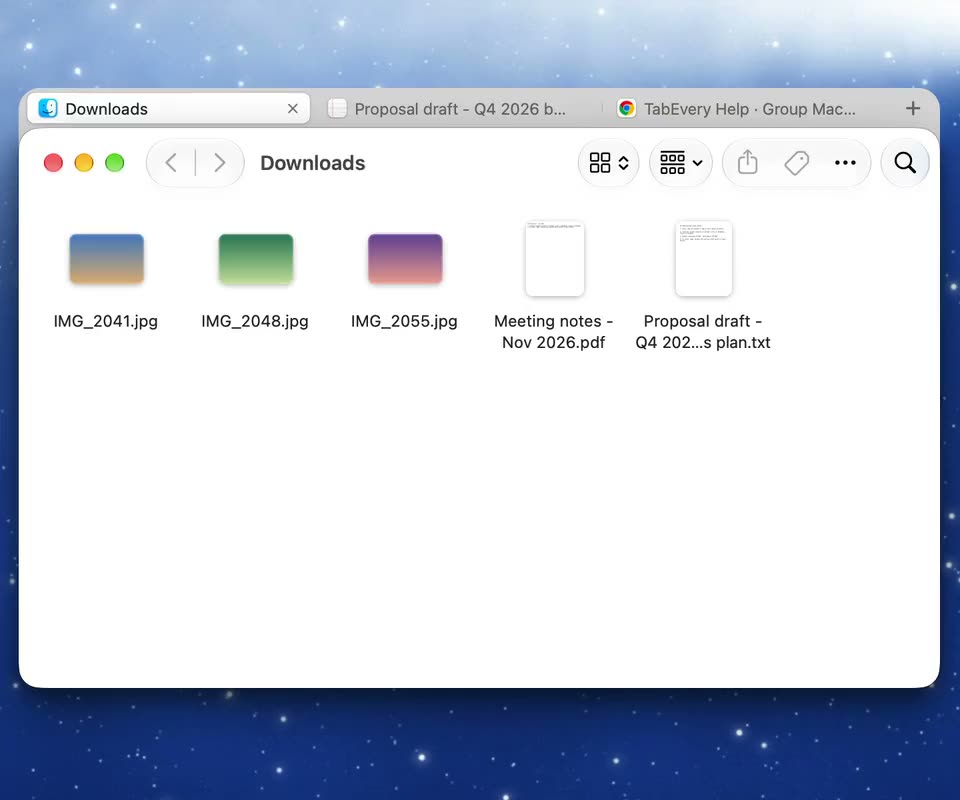
Pick and group
Choose open windows from the TabEvery menu in the menu bar and group them at once.
Help →14-day free trial · Pay once US$9.99
Stop ⌘-Tabbing for windows. Tab any app, like your browser.
macOS 14 or later · Apple silicon · Intel
TabEvery is a Mac app. Open this page on your Mac to download it.
- Drag onto a window to group
- Switch tabs with a click or ⌥→
- Quit, and every window goes back
Why TabEvery
There were already ways to tidy up windows. But macOS window tabs only join windows of the same app, and the window tab apps we tried left hidden windows off the edge of the screen when they quit, didn't restore the sizes they had changed, or forgot their groups after a restart.
TabEvery was built so you never lose a window. It groups windows from any app under one tab bar, and when it quits, even when it's forced to, every window goes back to the size and place it had.
Features
Drag to group. Switch from the keyboard.
Finder, your browser, a document: drag a window onto another and let go, and they share one tab bar. Then switch with a click or ⌥→.
What people worry about with window tab apps
If you've used another window tab app, you've probably run into some of these. Here's what TabEvery does. Every number is one we counted ourselves.
- TabEvery is forced to quit
- Moments later, every window is back where it was
- Do my groups fall apart when I restart?
- Groups, tab order and the tab you were on all come back. We restarted 10 times, and all 10 came back.
- If the app suddenly quits, do my windows disappear?
- They go back to their original size and place, in our tests within about 3 seconds and often in under a second. We tried it with 38 apps, and all 38 came back.
- If several new windows open at once, does it miss any?
- Open 5 windows within a second and none are missed. They join in the order they opened: 45 out of 45.
- When I switch tabs, does it flicker or bring up other windows?
- Only the window of the tab you pressed comes forward. In 159 switches, the wrong window never showed.
- Will my Mac slow down if I leave it running?
- At rest it uses less than 0.3% CPU and about 25 MB of memory, and neither grew over an hour.
- What happens when the trial ends?
- New grouping pauses. Groups you already have stay until you quit TabEvery, and then every window goes back to where it was.
- How is this different from macOS window tabs?
- macOS tabs only join windows of the same app. TabEvery puts windows from any app under one tab bar.
- Which windows aren't grouped?
- Full-screen windows, dialogs and palettes, windows narrower than 300 points, and apps you list in Settings. A tab you drag to another Space leaves its group.
- Does it work with two displays?
- Yes. We tried a MacBook with one external display: moving groups between displays, quitting and force quitting lost no window. Unplugging a display is not tested yet.
Measured on Macs with Apple silicon and macOS 27.2 on November 28 and 29, 2026: a Mac mini for these numbers, a MacBook with one external display for two displays, and the Intel part under Rosetta. Your Mac may differ. Every tab switch took under 0.15 seconds, most under 0.1. Full record, and what is not tested yet ›
And more
Side by side, one size, pick and group.
Pick windows from the menu
Choose Windows to Group
 Proposal draft - Q4 2026 business plan
 Downloads
 TabEvery Help
 Meeting notes - Nov 2026.pdf
Group
- Rename, pin and color tabs.
- Find a tab by its title or app name.
- Drag tabs to reorder them, or drag one down to take it out.
- Save a group and reopen its windows later.
Privacy
It doesn't read what's in your windows.
Moving other apps' windows needs Accessibility access. TabEvery uses it to move and resize windows, show window titles on tabs, and notice its tab-switching shortcuts. It never reads window contents or what you type, and never sends window titles, window contents or usage data anywhere.
Signed with a Developer ID and notarized by Apple.
Made by Aide Inc. Write to us any time. support@tabevery.com
Try it for 14 days, then decide.
Download free for 14 daysTabEvery is a Mac app. Open this page on your Mac to download it.
US$9.99 once · No subscription · Up to 3 computers · Updates until 2.0 · Refund within 14 days of purchase
Payment opens soon. The free trial starts now.
Signed with a Developer ID and notarized by Apple.