 TabEvery
Download free
 Proposal draft - Q4 2026 business plan
 Downloads
 TabEvery Help
Too many windows on your Mac: what each built-in tool does, and what's left
macOS has six ways to deal with a crowded screen, and each solves a different part of the problem. This page goes through what each one is good for and where it stops, with a link to Apple's own steps, and then the one case none of them covers: windows from different apps that belong to one task.
The six tools at a glance
| Tool | Good for | Where it stops |
|---|---|---|
| Mission Control | Seeing every open window at once and picking one | It is a view. When you leave it, the windows are where they were |
| Spaces | A separate desktop for each area of work | Inside a Space, the windows still overlap |
| Stage Manager | Keeping the app you're using in the center and the rest at the side | A group shows its windows together. It doesn't put them into one window |
| Tiling | Two to four windows you want to see at the same time | Each window gets smaller as you add more |
| Hide and minimize | Getting a window out of the way for now | You bring them back one at a time |
| Tabs | Many windows of one app in a single window | One app only |
Mission Control
Mission Control shows all the windows open on your desktop in a single layer, so you can find the one you want. Press ⌃ ↑, swipe up with three fingers on a trackpad, or press the Mission Control key. ⌃ ↓ shows only the current app's windows.
It answers "where is that window?" It does not reduce the number of windows or keep related ones together. Apple's steps: View open windows and spaces in Mission Control on Mac.
Spaces
Spaces are extra desktops. Open Mission Control and click the Add button in the Spaces bar. You can have up to 16. Move between them with ⌃ → and ⌃ ←, and move a window by dragging it to the edge of the screen.
Spaces are good for separating areas of work, such as one for mail and chat and one for a project. Inside a Space you still have the same pile of overlapping windows, only smaller. Apple's steps: Work in multiple spaces on Mac.
Stage Manager
Stage Manager keeps the app you're working with in the center and puts the others in a strip at the side. Turn it on in System Settings › Desktop & Dock, under Desktop & Stage Manager, or from Control Center. You can drag an app from the side into the center to make a group of several apps.
A Stage Manager group brings its windows on screen together, each at its own size and place. It does not put them into one window, so within a group you still arrange and find windows yourself. Apple's steps: Organize your Mac desktop with Stage Manager.
Tiling
On macOS 15 or later, drag a window to an edge of the screen to tile it, hold the pointer over the green button for layouts, or choose Window › Move & Resize and pick from Halves or Quarters.
Tiling is the right tool when you need to see two or three windows at the same time. It stops helping when you have eight, because every tile gets too small to work in. Apple's steps: Tile windows on Mac.
Hide and minimize
⌘ H hides the app in front and ⌘ M minimizes a window to the Dock. Both clear the screen quickly. Both also put the window out of sight, and you bring each one back by hand. Apple's steps: Move and arrange app windows on Mac.
Tabs in one app
In many apps, Window › Merge All Windows turns the app's windows into tabs in one window. Ten Finder windows become one. This is the only built-in tool that reduces the number of windows without hiding anything, but it works only inside one app. More in what macOS does on its own.
What's left: one task, several apps
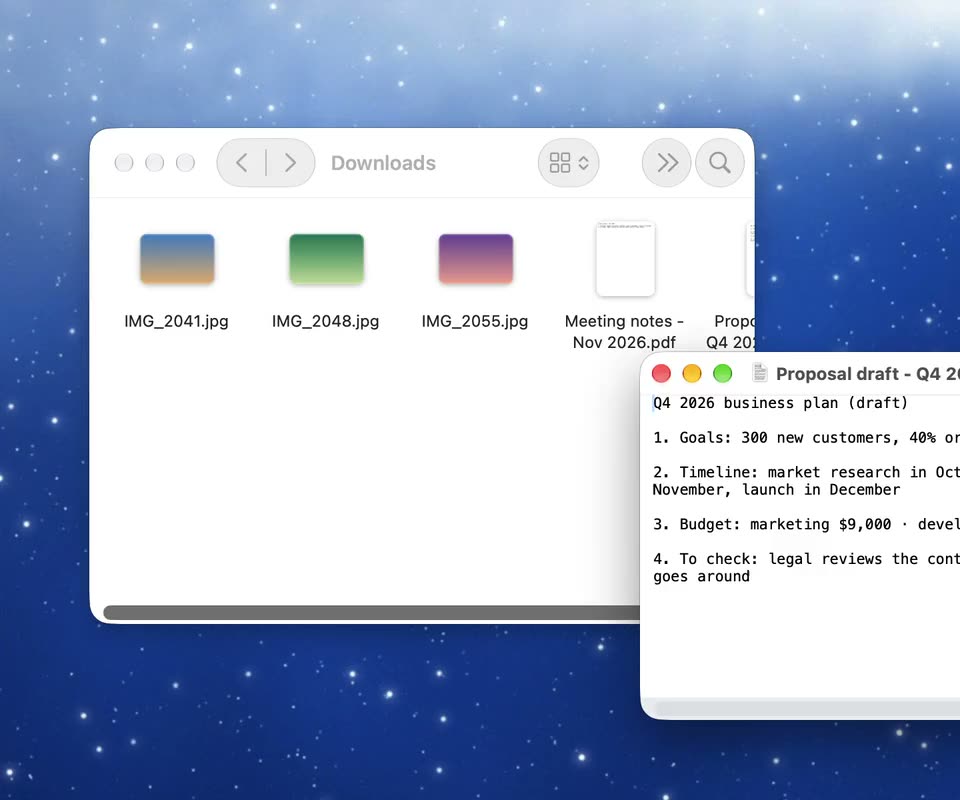
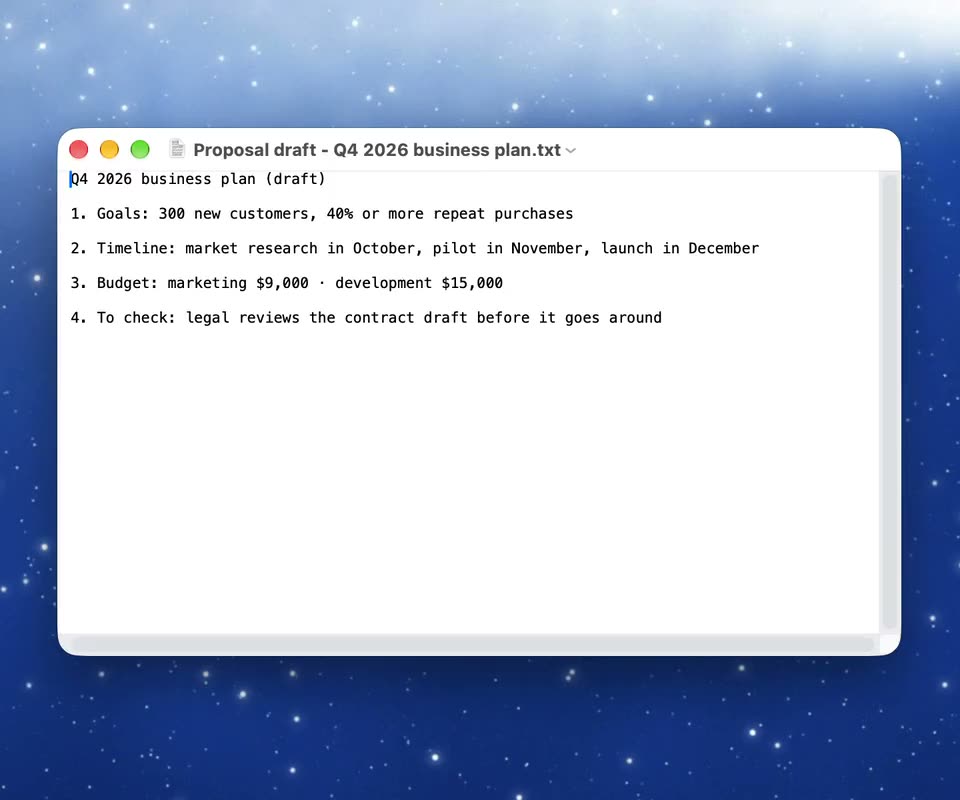
Put the six together and one case is still open. A task usually spans apps: a document, the browser pages you're reading for it, a Finder folder, a chat window. No built-in tool keeps those together as one thing you can move, resize and switch through. Spaces come closest, and you would need one Space per task.
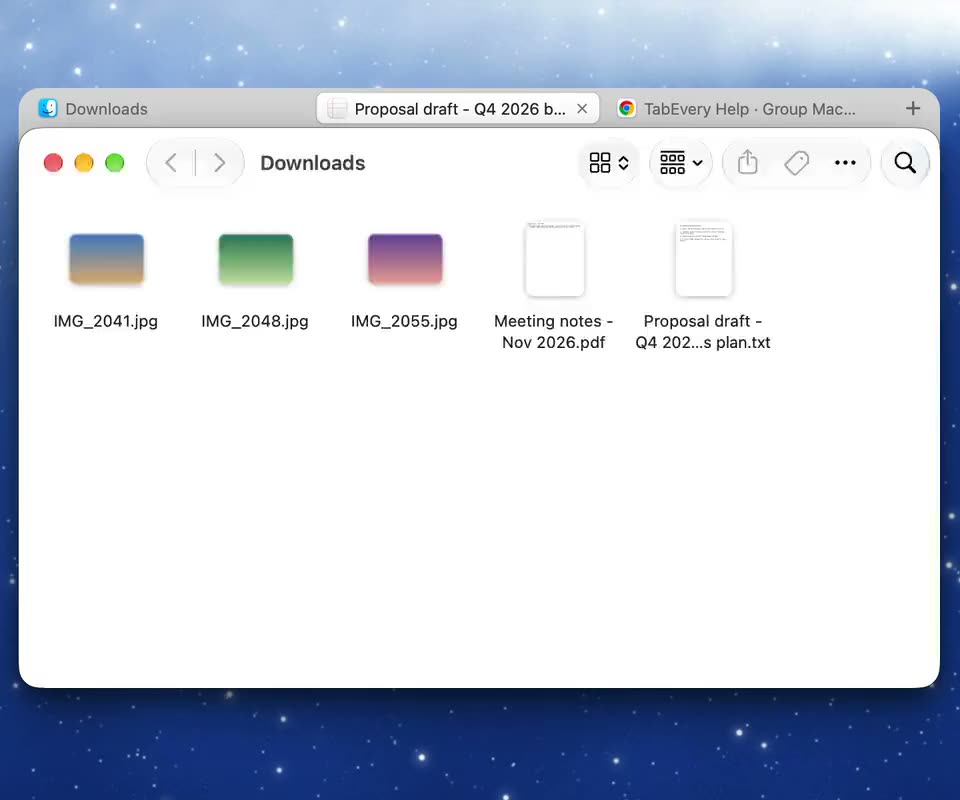
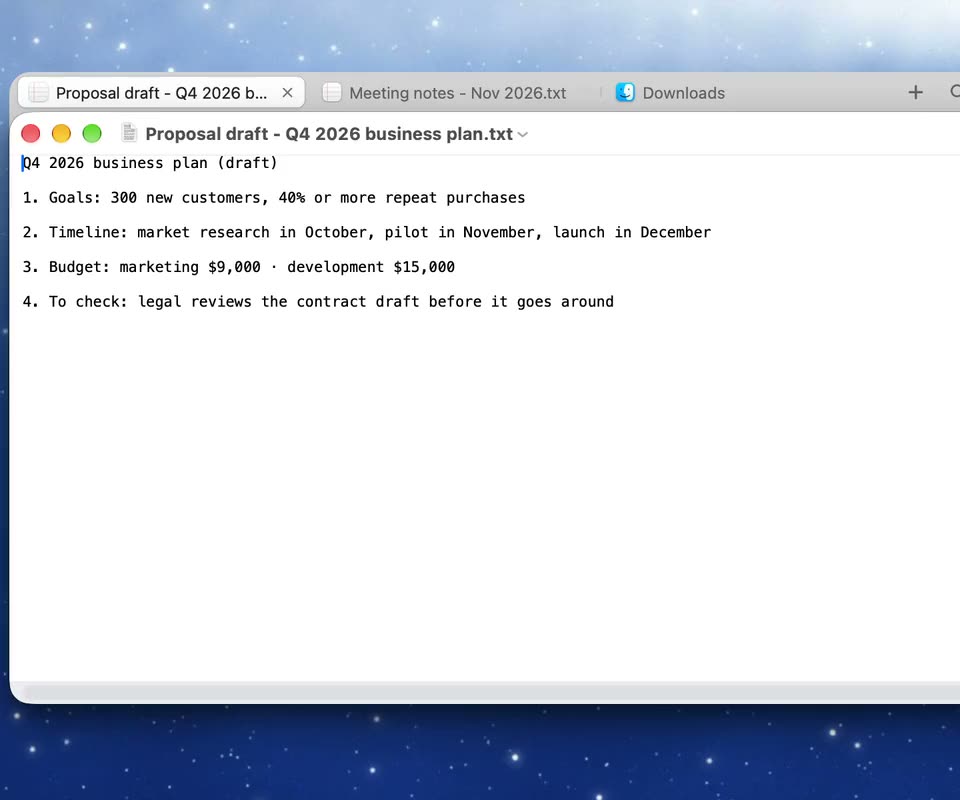
TabEvery covers that case. It is a menu bar app that puts windows from any apps under one tab bar: drag one window onto another and they become tabs in one window. The steps are in How to group windows from different apps into tabs.
It works alongside the built-in tools. A common setup is a Space per area of work and a tab group per task inside it.
Since it moves other apps' windows, here is what we measured about leaving it running:
| What we did | Result |
|---|---|
| 30 tabs in one group, and 10 groups at once | 0 wrong windows while switching. After quitting, 0 windows at a different size |
| Idle for 61 minutes with 3 groups and 15 tabs | 0.21% CPU on average, 25 MB of memory, neither rising |
| Quit 5 times and force quit 5 times, then start again | 10 of 10 came back with the same groups, at their size before grouping |
Measured on one Mac mini with macOS 27.2.1 and TabEvery 1.0.0, on November 28 and 29, 2026. Your Mac may differ. The method for each number, and what we have not tested, is in Why we built it, and what we measured.
Try it
TabEvery is free for 14 days, with no account. After that it costs US$9.99 once, for up to 3 computers.