 TabEvery
Download free
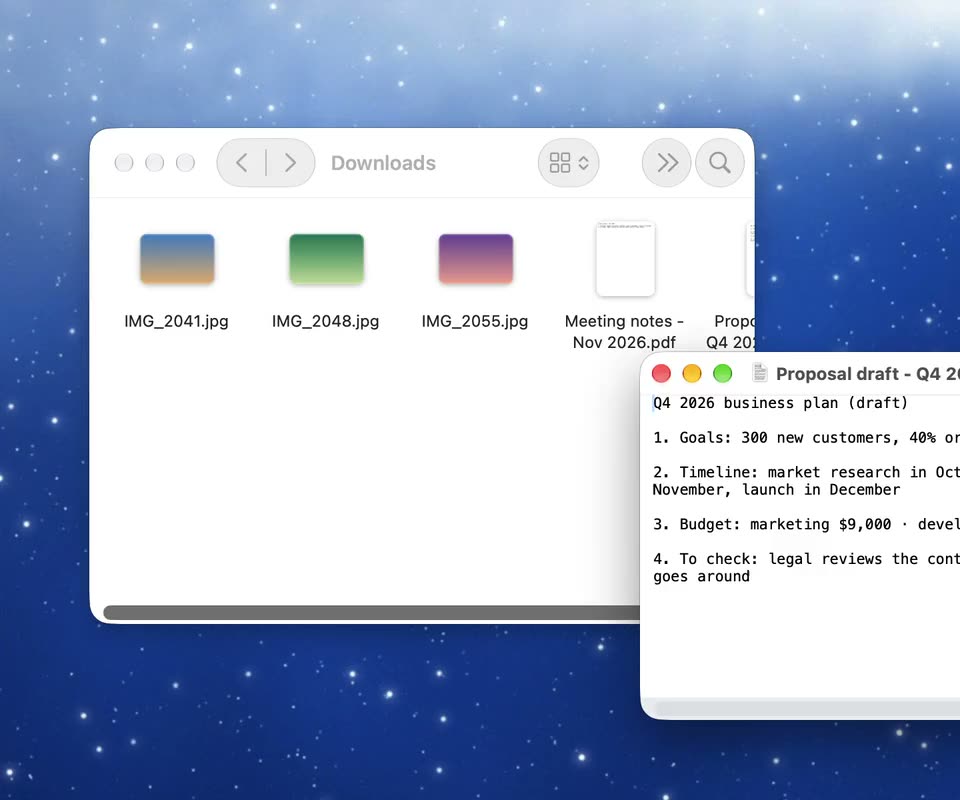
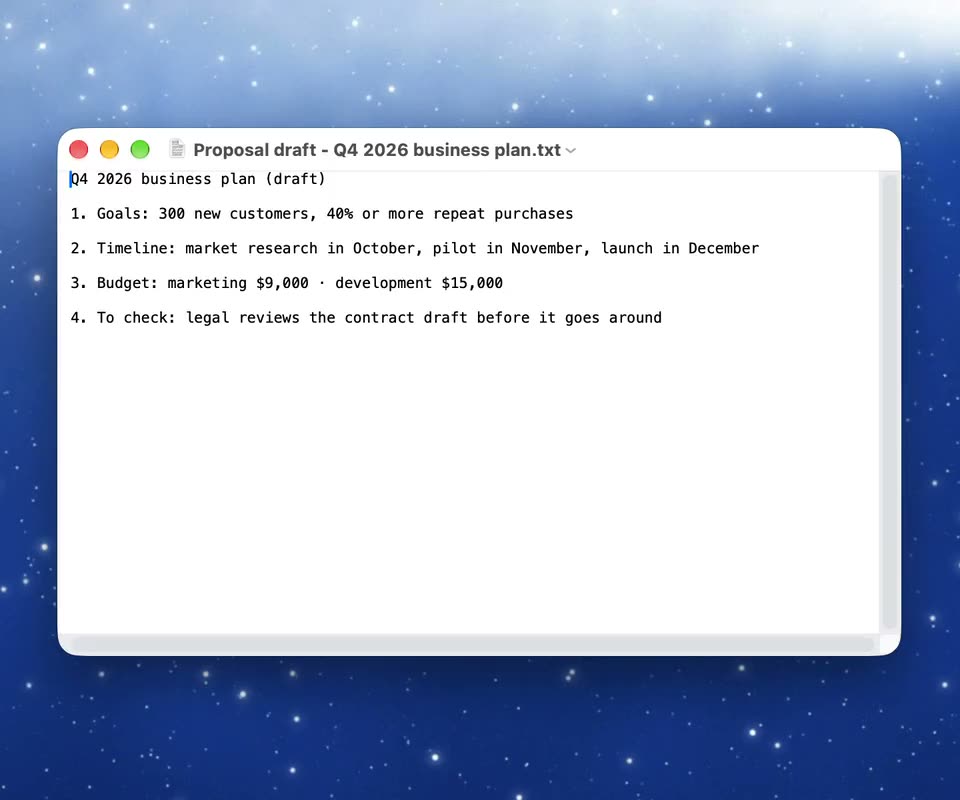
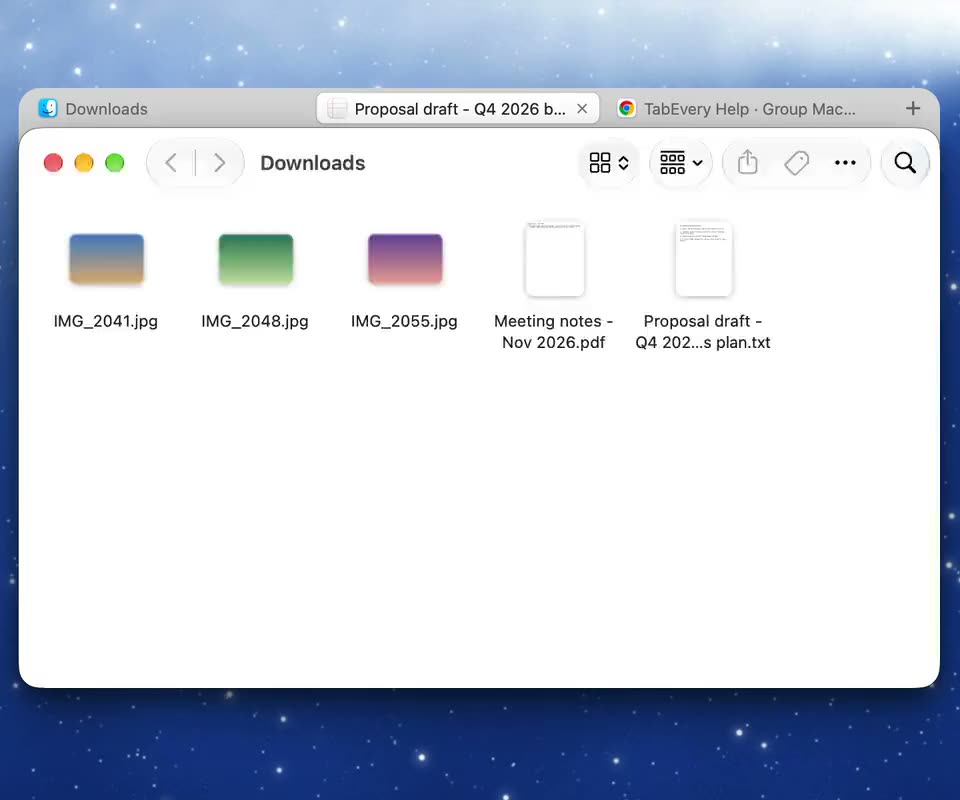
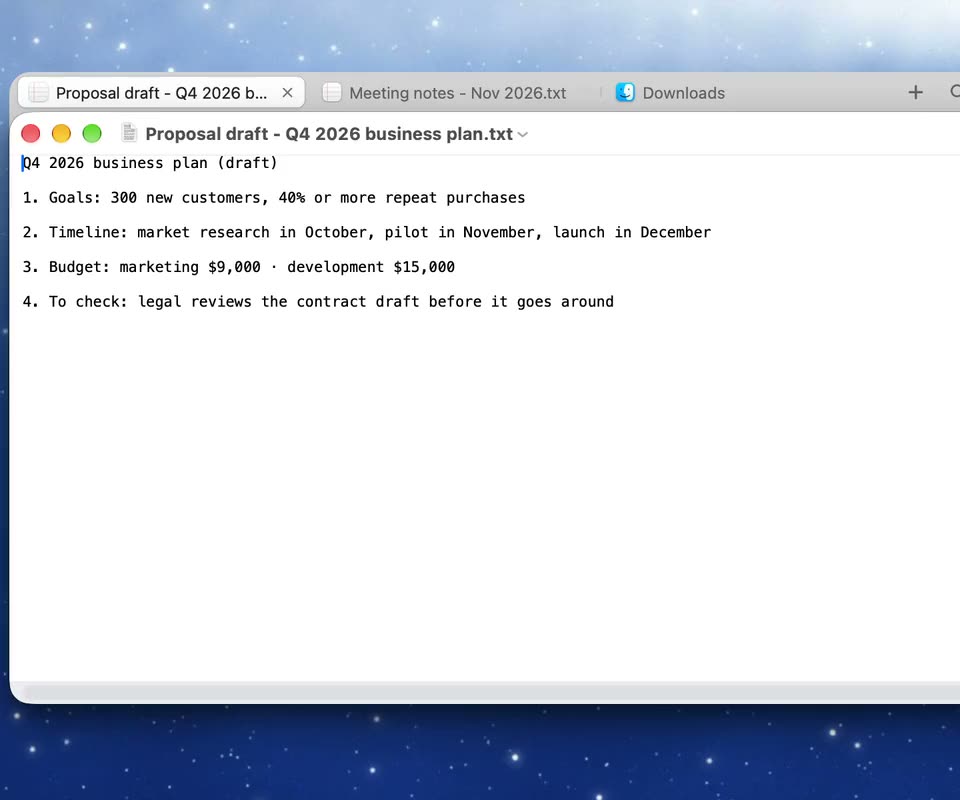
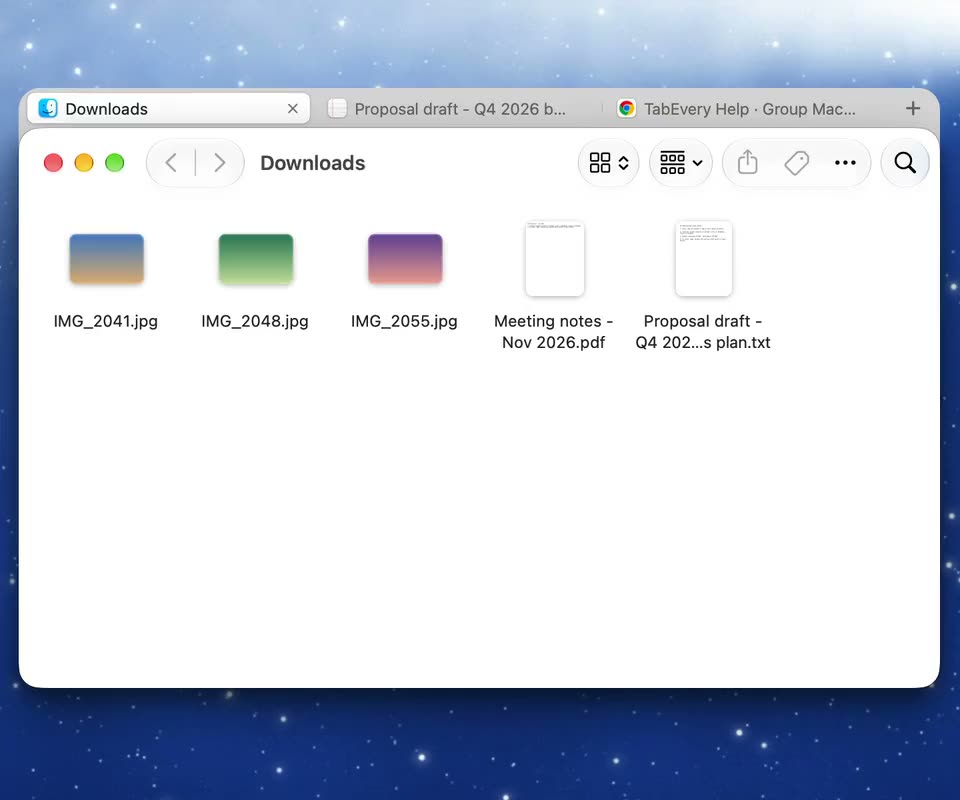
 Proposal draft - Q4 2026 business plan
 Downloads
 TabEvery Help
Editor, terminal and browser in one tabbed window on a Mac
A project is rarely one window. It is an editor, a terminal, a browser with the running app, and often a Finder window. ⌘ Tab switches apps, not projects, so with two projects open the terminal you land on may belong to the other one. Grouping each project's windows into one tabbed window keeps them together.
One group per project
This uses TabEvery, a Mac menu bar app that puts windows from any apps under one tab bar. The tabs built into macOS can't do it, because they only join windows of one app.
- Open the project's editor window, a terminal window and a browser window.
- Drag the terminal by its title bar onto the editor. Pause until a blue outline appears, then let go.
- Drop the browser window on the group the same way.
- The group has one size, the size of the window you dropped onto. Resize the tab you see and the whole group follows.
- To tell projects apart, right-click a tab and use Rename Tab… and Color.
- If a window has no title bar to grab, click + at the right end of a tab bar, or choose Group Windows… from the TabEvery menu in the menu bar.
Shortcuts that don't fight your editor
The default keys are ⌥ → and ⌥ ← for the next and previous tab, and ⌥ 1 to 9 for a tab by number.
There is a catch for anyone who edits text. Editors and terminals use Option with the arrow keys to move by word, and TabEvery takes those keys while the front window is in a group. Pick one of these:
- Change the modifier keys. In Settings › Shortcuts › Modifier keys, choose keys your editor doesn't use with the arrows, for example Control with Option.
- Turn the shortcuts off in that app. Add the editor or terminal to Settings › Shortcuts › Turn off shortcuts in. The keys then go to the app as usual, and you click tabs while that app is in front.
When the front window is not in a group, TabEvery leaves these keys alone.
New windows join on their own
In Settings › Grouping, add your editor to Auto-group new windows from.
- A new window from that app joins the most recently used group that already holds a window of the same app, as the last tab.
- That rule follows the app, not the project. If you open a second project's window while the first project's group was used last, it joins the first group. Drag the tab down off the bar to take it out, then start a new group with it.
- Dialogs and save panels are left alone.
We opened 5 new windows within one second, 3 times each in TextEdit, Chrome and Finder: 45 of 45 joined, in the order they opened. An earlier run that included VS Code joined 60 of 60.
Editor and browser side by side
Split view shows two tabs of one group next to each other, which suits an editor and the page it produces.
- Press ⌥ \. The tab you see goes on the left and the next tab goes on the right. Press it again to go back to one tab.
- Or right-click a tab and choose Split Right.
- Drag the edge where the two windows meet to move the divider.
- A pane does not get narrower than 300 points. If the two windows can't fit on the screen, split view turns off instead of overlapping them.
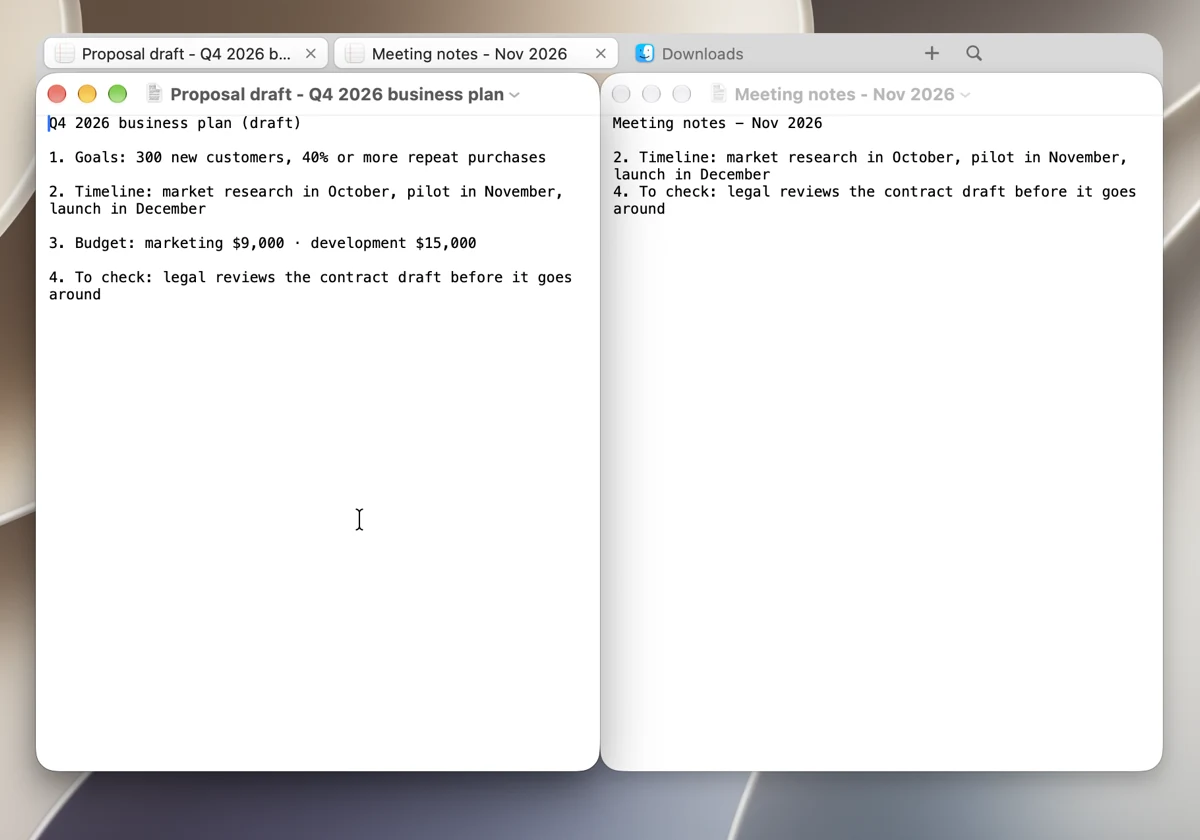
Terminal windows resize in whole character cells, so they can't take every size. In our tests the two panes met with no gap for Terminal next to Terminal, TextEdit next to Terminal, and iTerm2 next to TextEdit. With VS Code in a pair, in front or behind, side by side or top and bottom, the gap was 0 in all four cases.
Save a project's windows
- Right-click a tab and choose Save Group…. Open it again from Saved Groups in the TabEvery menu.
- Opening a saved group uses the windows that are already open, reopens saved documents, starts apps that aren't running, and tells you if a tab could not be found.
- A saved group remembers apps and document files. It does not remember a browser page or a terminal session, and it never opens a whole folder. Open the project in your editor first, then open the saved group.
Separately from saved groups, TabEvery saves your current groups as you go and puts them back together the next time it opens, for the windows that are still open.
What we tested
For each app, one script groups a window, switches tabs back and forth 6 times, drags the group by the app's title bar with the real mouse, removes the tab, groups it again, force quits TabEvery and checks that the watcher process put the window back.
| App | Result | Tab switch, average and slowest |
|---|---|---|
| VS Code | Passed every step | 59 ms, 64 ms |
| iTerm2 | Passed every step | 62 ms, 76 ms |
| Terminal | Passed every step | 84 ms, 126 ms |
| Chrome | Passed every step | 65 ms, 76 ms |
| Safari | Passed every step | 74 ms, 96 ms |
| Xcode | No result. Its window did not open in time for the script | |
| Docker Desktop | No result. It could not be tested |
- Terminal settles on the nearest whole character cell, so its tab can be a few points off the group's size.
- Some windows can't shrink all the way to a small group's size. In a group of such windows, a switch took 90 ms on average and 119 ms at the slowest.
Measured on one Mac mini with macOS 27.2.1 and TabEvery 1.0.0, on November 28 and 29, 2026. Your Mac, your editor's version and your extensions may differ. We have no result for editors and terminals not listed here. The method and the full record are in Why we built it, and what we measured.
Limits
- A tab you drag to another Space leaves its group.
- Full-screen windows are not grouped. If a tab goes full screen, its tab bar hides until it comes back.
- Some apps show a welcome window when they open. It appears above the app's tab until you close it.
Try it
TabEvery is free for 14 days, with no account. After that it costs US$9.99 once, for up to 3 computers.