 TabEvery
Download free
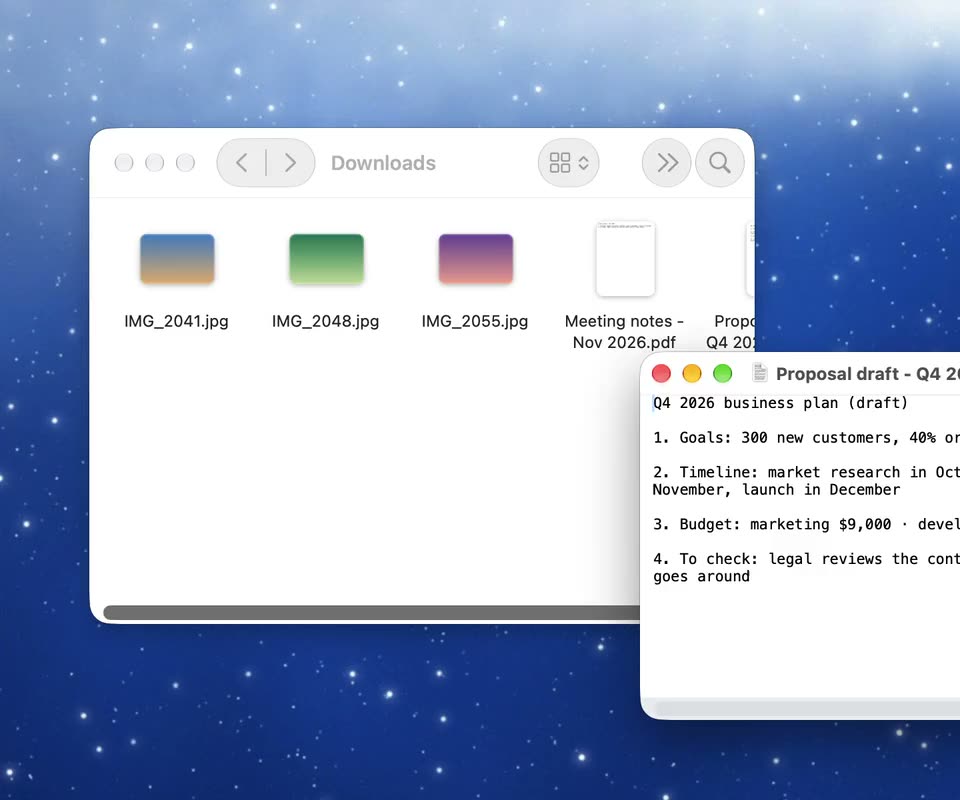
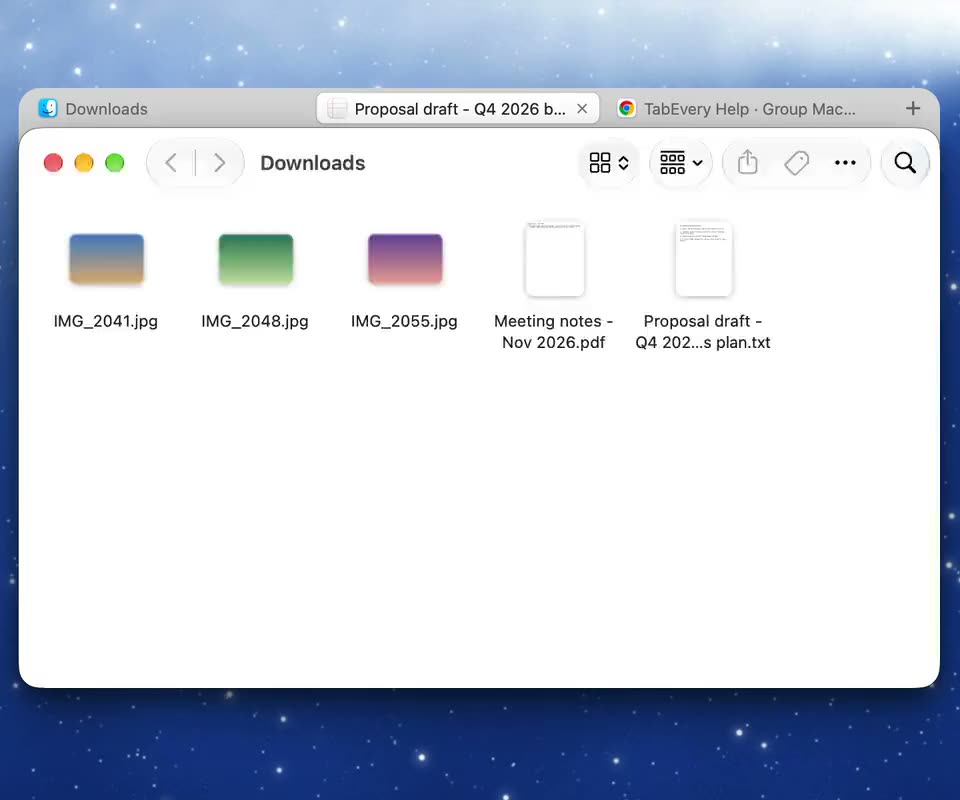
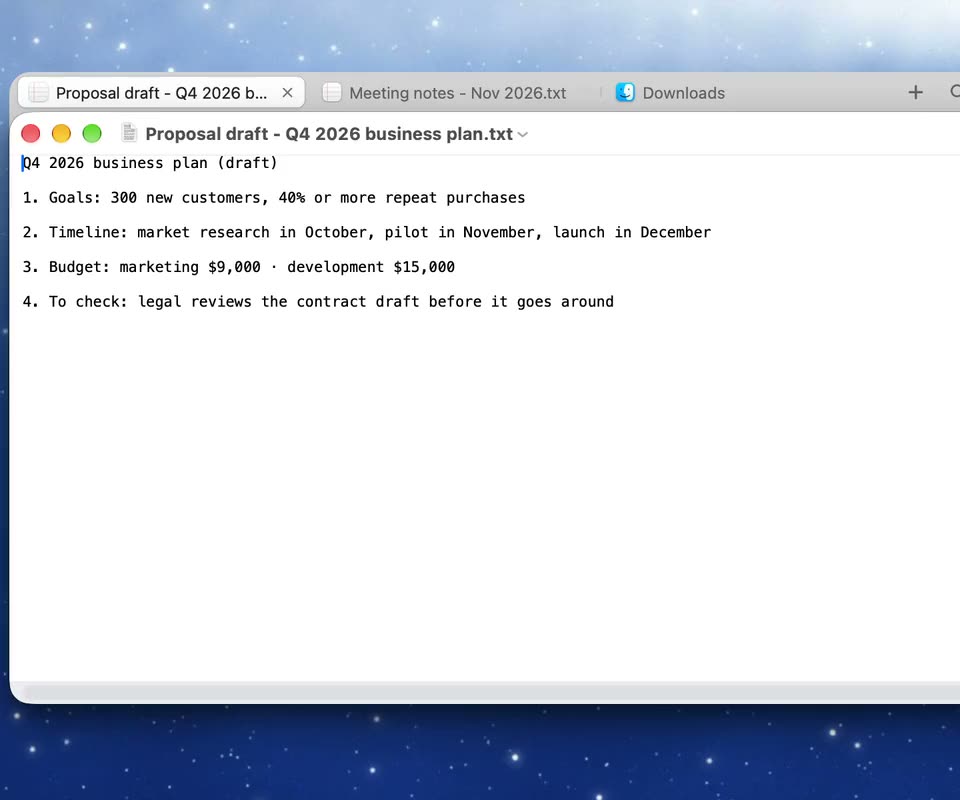
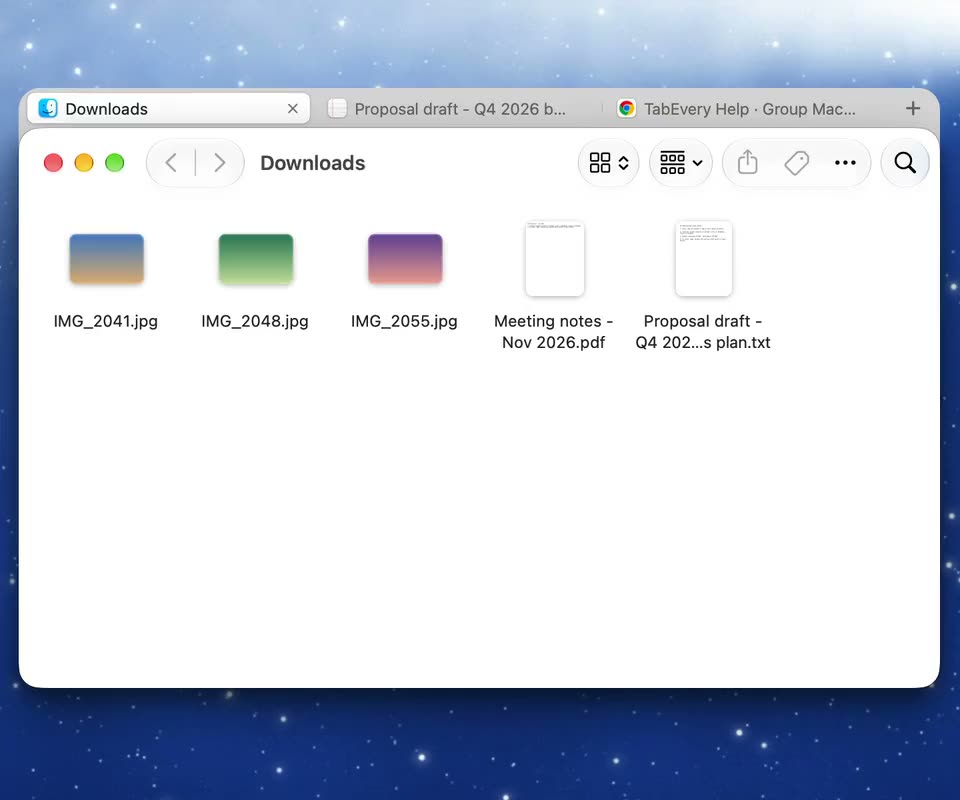
 Proposal draft - Q4 2026 business plan
 Downloads
 TabEvery Help
How to group windows from different apps into tabs on a Mac
The window tabs built into macOS join the windows of one app. To put a browser, an editor and a Finder window under one tab bar, you need an app that groups windows across apps. This page shows what macOS does on its own, where that stops, and how to do the rest with TabEvery.
The short answer
- Windows of the same app: use the tabs built into macOS. Choose Window › Merge All Windows.
- Windows of different apps: macOS has no setting for this. TabEvery does it. Drag one window onto another and they become tabs in one window.
What macOS does on its own
Many Mac apps, such as Finder, Safari, Terminal and TextEdit, can show their own windows as tabs.
- Merge an app's windows: click one of the app's windows, then choose Window › Merge All Windows.
- Open documents in tabs from the start: in System Settings › Desktop & Dock, go to Windows and set Prefer tabs when opening documents.
- Take a tab out again: choose Window › Move Tab to New Window, or drag the tab out of the window.
Apple's own steps are in Use tabs in windows on Mac.
Where the built-in tabs stop
- They merge the windows of one app. Merge All Windows in Safari gathers Safari windows. It doesn't bring in your editor or a Finder window.
- Not every app has them. If an app's Window menu has no Merge All Windows command, it doesn't use these tabs.
- If an app has more than one kind of window, only the kind you're working in is merged.
Work rarely stays inside one app. An editor, a terminal, a browser and a Finder window can belong to one task, and they end up spread across the screen.
Group windows from different apps
TabEvery is a menu bar app that puts windows from any apps under one tab bar. It is free to try for 14 days.
- Download TabEvery, move it to the Applications folder and open it.
- Turn on Accessibility access when it asks. macOS requires this for any app that moves and resizes other apps' windows. The steps are in Help.
- Drag a window by its title bar onto another window.
- Pause until a blue outline appears with the label Release to group with this window.
- Let go. The two windows are now tabs under one tab bar.
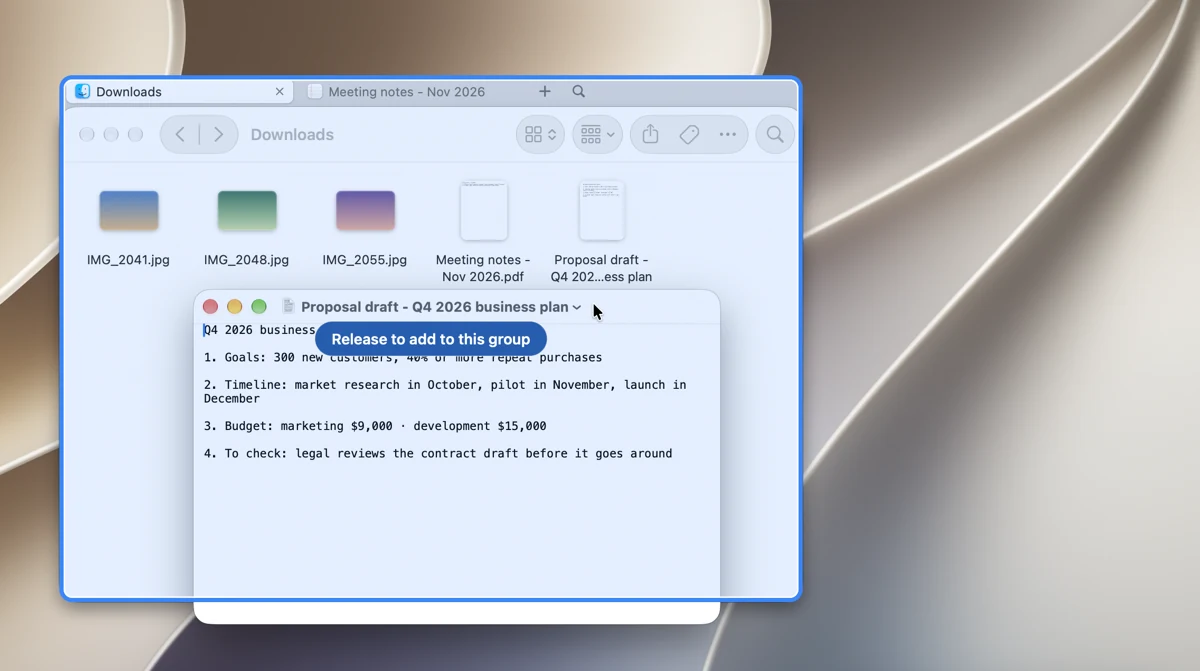
- Drop a third window on the group and it joins as the last tab.
- If you let go before the outline appears, nothing is grouped. The window just moves. In our test, 10 of 10 deliberate drops grouped, and of 10 moves made without meaning to group, none grouped a window by mistake.
- Prefer not to drag? Click + at the right end of a tab bar, or choose Group Windows… from the TabEvery menu in the menu bar and pick windows from a list.
- To have an app's new windows join on their own, add the app in Settings › Grouping › Auto-group new windows from.
Switch between the tabs
Click a tab, or use the keyboard:
| Keys | What it does |
|---|---|
| ⌥ → | Next tab |
| ⌥ ← | Previous tab |
| ⌥ 1 to 9 | Tab by number |
- Switching brings only that tab's window forward, not every window of its app.
- TabEvery takes these keys only while the front window is in a group. If an app needs Option with the arrow keys itself, for example to move by word in a text editor, pick other modifier keys in Settings › Shortcuts › Modifier keys.
- In 159 switches made with real key presses, the wrong window showed 0 times, and none took longer than 0.15 seconds.
What happens to your windows
An app that moves other apps' windows around carries a risk the built-in tabs don't have. If it goes wrong, a window can end up at the wrong size, or somewhere you can't reach it. This is what TabEvery does about that, and what we counted.
- Hidden tabs are never moved off screen or minimized. They sit behind the tab you see.
- When you quit TabEvery, every window goes back to the size and place it had before grouping.
- If TabEvery is forced to quit, a separate watcher process puts the windows back.
| What we did | Result |
|---|---|
| Quit normally 5 times and force quit 5 times, then start again | 10 of 10 came back with the same groups, tab order and visible tab. 10 of 10 at their size before grouping, 0 off screen |
| Force quit with a window of each of 38 apps in a group | 38 of 38 restored, 0 off screen |
Measured on one Mac mini with macOS 27.2.1 and TabEvery 1.0.0, on November 28 and 29, 2026, with scripts that send real key presses and mouse drags and read the results from the macOS window list. Your Mac may differ. The method for each number, and what we have not tested, is in Why we built it, and what we measured.
What can't be grouped
- Full-screen windows, dialogs and palettes, and windows narrower than 300 points.
- A tab you drag to another Space leaves its group. macOS has no public way to move another app's window between Spaces.
- Some apps show a welcome or file-picker window when they open. That window appears above the app's tab until you close it.
Try it
TabEvery is free for 14 days, with no account. After that it costs US$9.99 once, for up to 3 computers. It needs macOS 14 or later and runs on Apple silicon and Intel Macs.