 TabEvery
Download free
 Proposal draft - Q4 2026 business plan
 Downloads
 TabEvery Help
Sources, notes and draft in one tabbed window on a Mac
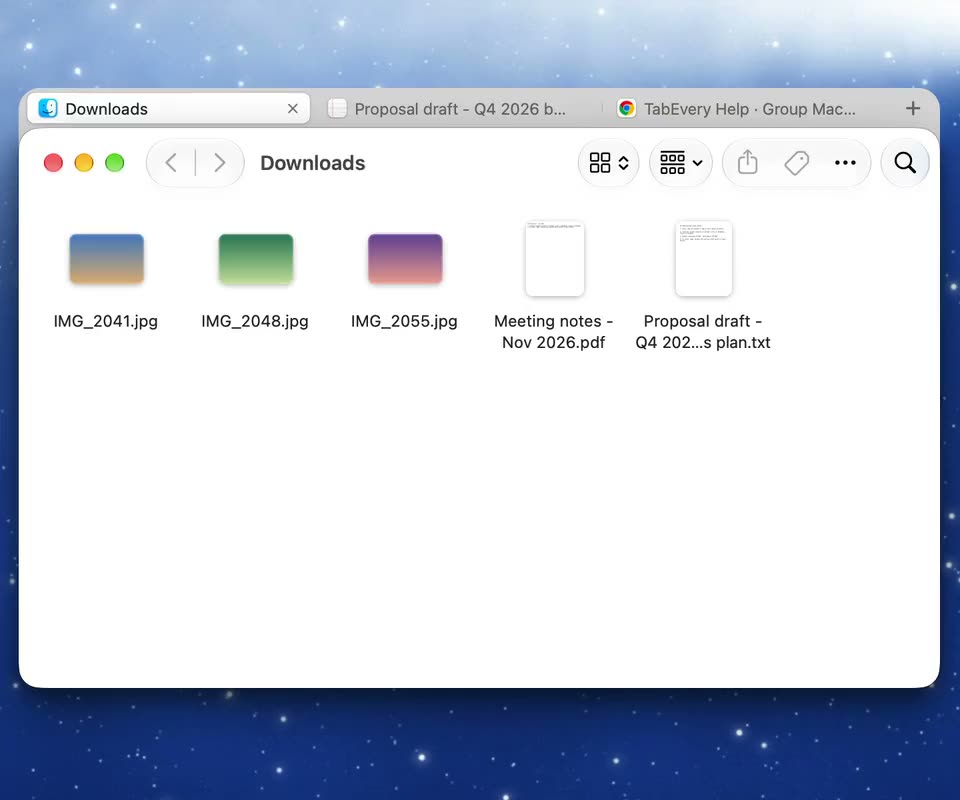
Writing from sources means a PDF, a few browser pages, your notes, the draft and a Finder folder, all open at once and each in a different app. This page shows how to keep them under one tab bar, put a source next to the draft, and get the same set back tomorrow.
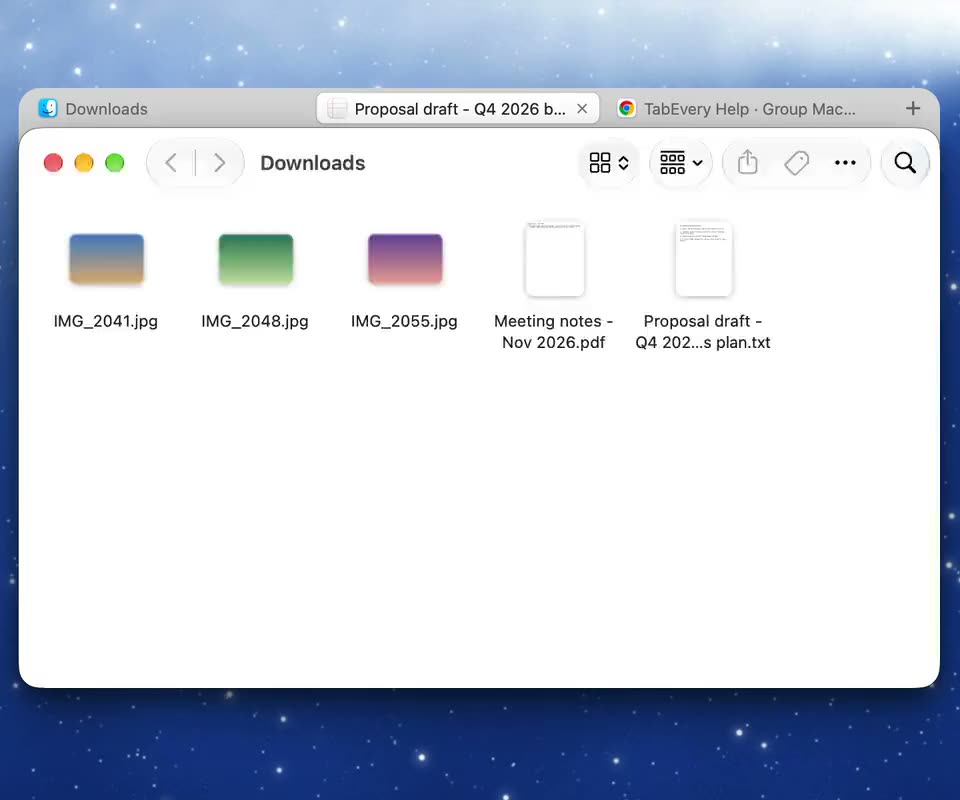
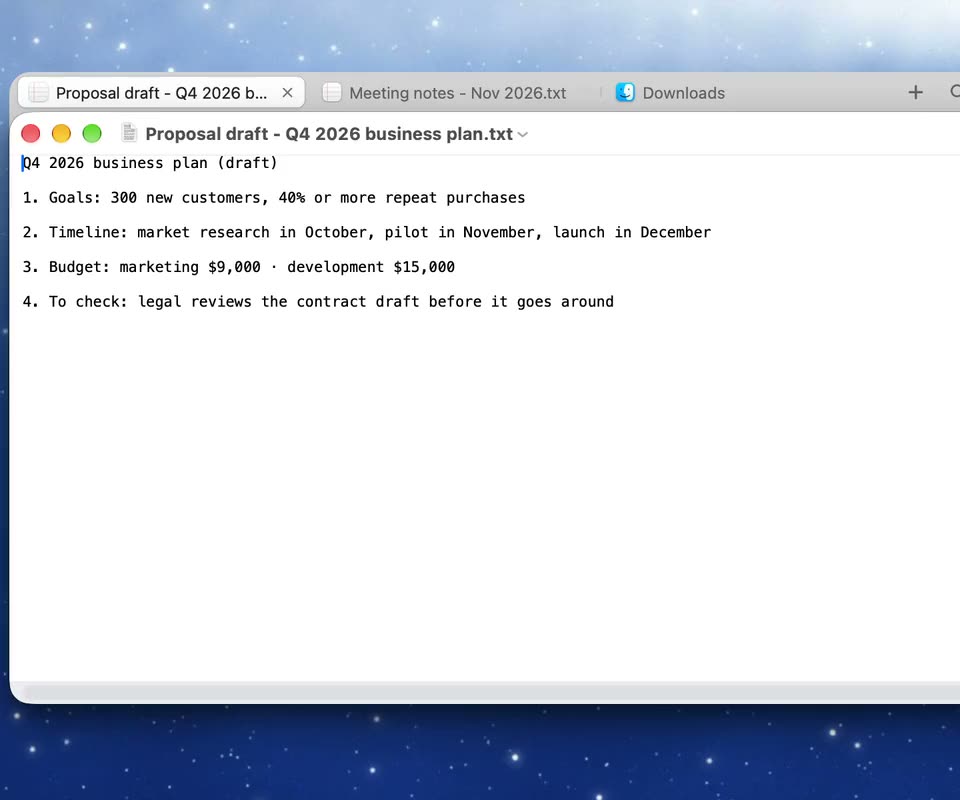
Put the windows in one group
This uses TabEvery, a Mac menu bar app that puts windows from any apps under one tab bar. The tabs built into macOS join windows of one app, so they can't hold a PDF in Preview next to a draft in a word processor.
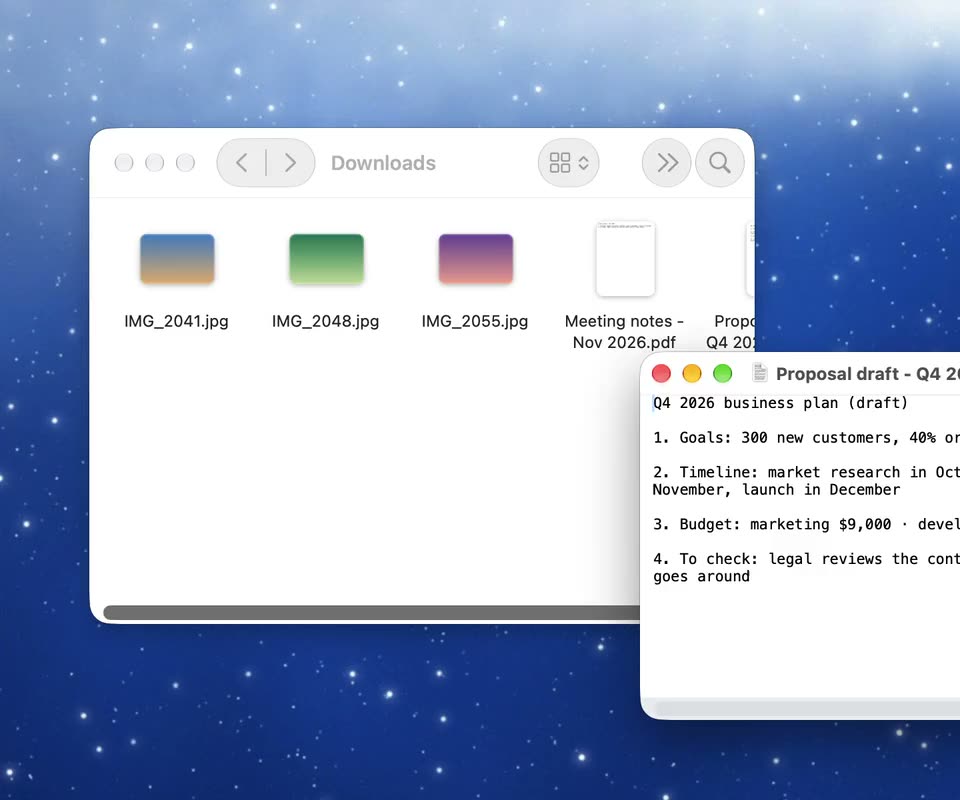
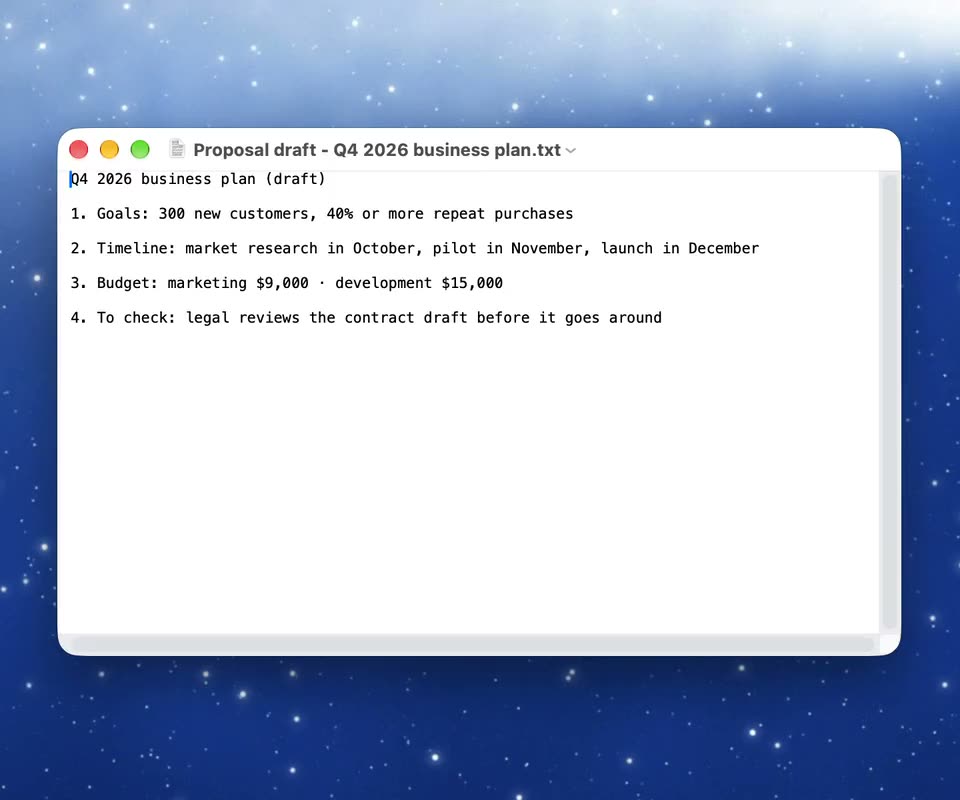
- Open the draft, the PDF and the browser window you're reading from.
- Drag the PDF window by its title bar onto the draft. Pause until a blue outline appears, then let go.
- Drop the browser window and the Finder folder on the group the same way.
- Click a tab to switch, or press ⌥ 1 to 9 for a tab by number.
- The group has one size. Resize the tab you see and every tab follows, so the draft doesn't jump when you come back to it.
- To label a tab, right-click it and choose Rename Tab…. Pin Tab moves the draft to the front of the bar and keeps it there.
- If a window has no title bar to grab, click + at the right end of the tab bar, or choose Group Windows… from the TabEvery menu in the menu bar.
A source next to the draft
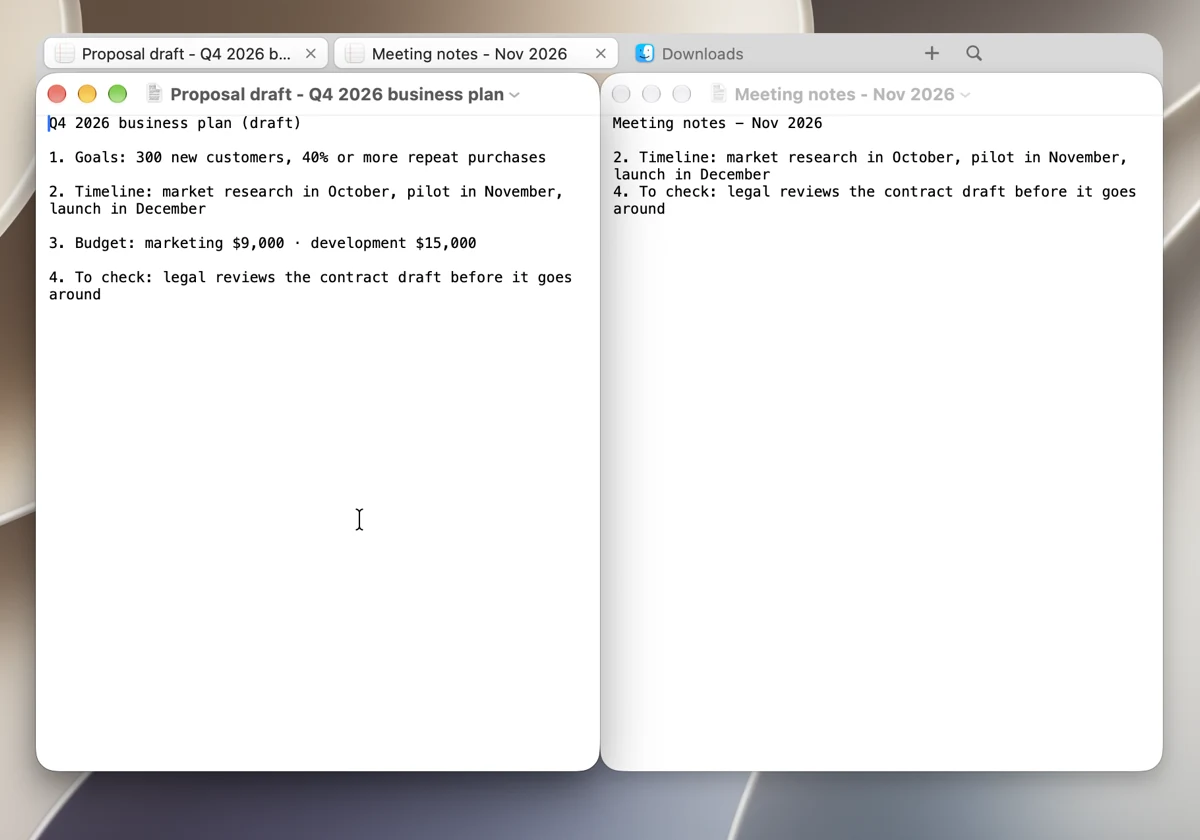
Split view shows two tabs of the group next to each other.
- Go to the draft and press ⌥ \. The draft goes on the left and the next tab goes on the right.
- To choose which tab goes on the right, right-click that tab and choose Split Right.
- Drag the edge where the two windows meet to give the draft more room. The other window follows when you let go.
- Right-click either tab of the pair and open Split View for Arrange Top and Bottom and Swap Panes.
- The pair acts like one tab. Click another tab to see it alone, then click either tab of the pair to see both again.
Keep Option-arrow for moving by word
TabEvery's default keys for the next and previous tab are ⌥ → and ⌥ ←. Those are also the keys for moving by word in text, and TabEvery takes them while the front window is in a group. If you write a lot, change this before you start:
- Change the modifier keys. In Settings › Shortcuts › Modifier keys, choose keys you don't use with the arrows while writing, for example Control with Option.
- Or turn the shortcuts off in your writing app. Add it to Settings › Shortcuts › Turn off shortcuts in. The keys go to the app as usual, and you click tabs while it is in front.
Get the same set back later
- While the windows stay open, there is nothing to do. TabEvery saves your groups as you go and groups the same windows again the next time it opens.
- To close everything and return to it another day, right-click a tab and choose Save Group…. Open it again from Saved Groups in the TabEvery menu.
- A saved group remembers apps and document files. Opening it uses the windows that are already open, reopens the saved documents, starts apps that aren't running, and tells you if a tab could not be found.
- It does not remember which pages were open in a browser window. Documents in iCloud Drive and cloud storage folders are reopened. Documents in hidden folders or the Library folder are not.
- The first time a saved group holds documents from your Documents, Desktop or Downloads folder, macOS asks whether TabEvery may access that folder.
What we tested
For each app, one script groups a window, switches tabs back and forth 6 times, drags the group by the app's title bar with the real mouse, removes the tab, groups it again, force quits TabEvery and checks that the window went back to its size and place.
| App | Result | Tab switch, average and slowest |
|---|---|---|
| Microsoft Word | Passed every step | 48 ms, 74 ms |
| Microsoft Excel | Passed every step | 43 ms, 65 ms |
| Microsoft PowerPoint | Passed every step | 36 ms, 55 ms |
| Obsidian | Passed, except dragging by the title bar. Its window has none, so group it with + or Group Windows… | 32 ms, 43 ms |
| Preview, TextEdit, Safari, Chrome | Passed every step | 52 to 74 ms, 60 to 99 ms |
| LibreOffice | No result. A macOS first-launch dialog stopped the script | |
| Pages, Numbers, Keynote, Notes | Not tested yet |
The first four rows were measured on a MacBook with macOS 27.2.1 on November 29, 2026, and the Preview, TextEdit, Safari and Chrome row on a Mac mini with macOS 27.2.1 and TabEvery 1.0.0 on November 28 and 29. One Mac each, so your Mac and your app versions may differ. The method and the full record are in Why we built it, and what we measured.
Limits
- Full-screen windows are not grouped. If a tab goes full screen, its tab bar hides until the window comes back.
- Dialogs, save panels and palettes are left alone, so a floating inspector or a font panel stays a separate window.
- A tab you drag to another Space leaves its group.
Try it
TabEvery is free for 14 days, with no account. After that it costs US$9.99 once, for up to 3 computers.